Introduction
Heartbeat is an open source program that provides cluster
infrastructure capabilities—cluster membership and messaging—to client
servers, which is a critical component in a high availability (HA)
server infrastructure. Heartbeat is typically used in conjunction with a
cluster resource manager (CRM), such as Pacemaker, to achieve a
complete HA setup. However, in this tutorial, we will demonstrate how to
create a 2-node HA server setup by simply using Heartbeat and a
DigitalOcean Floating IP.
If you are looking to create a more robust HA setup, look into using Corosync and Pacemaker or Keepalived.
Goal
When completed, the HA setup will consist of two Ubuntu 14.04 servers
in an active/passive configuration. This will be accomplished by
pointing a Floating IP, which is how your users will access your
services or website, to point to the primary, or active, server unless a
failure is detected. In the event that the Heartbeat service detects
that the primary server is unavailable, the secondary server will
automatically run a script to reassign the Floating IP to itself via the
DigitalOcean API. Thus, subsequent network traffic to the Floating IP
will be directed to your secondary server, which will act as the active
server until the primary server becomes available again (at which point,
the primary server will reassign the Floating IP to itself).
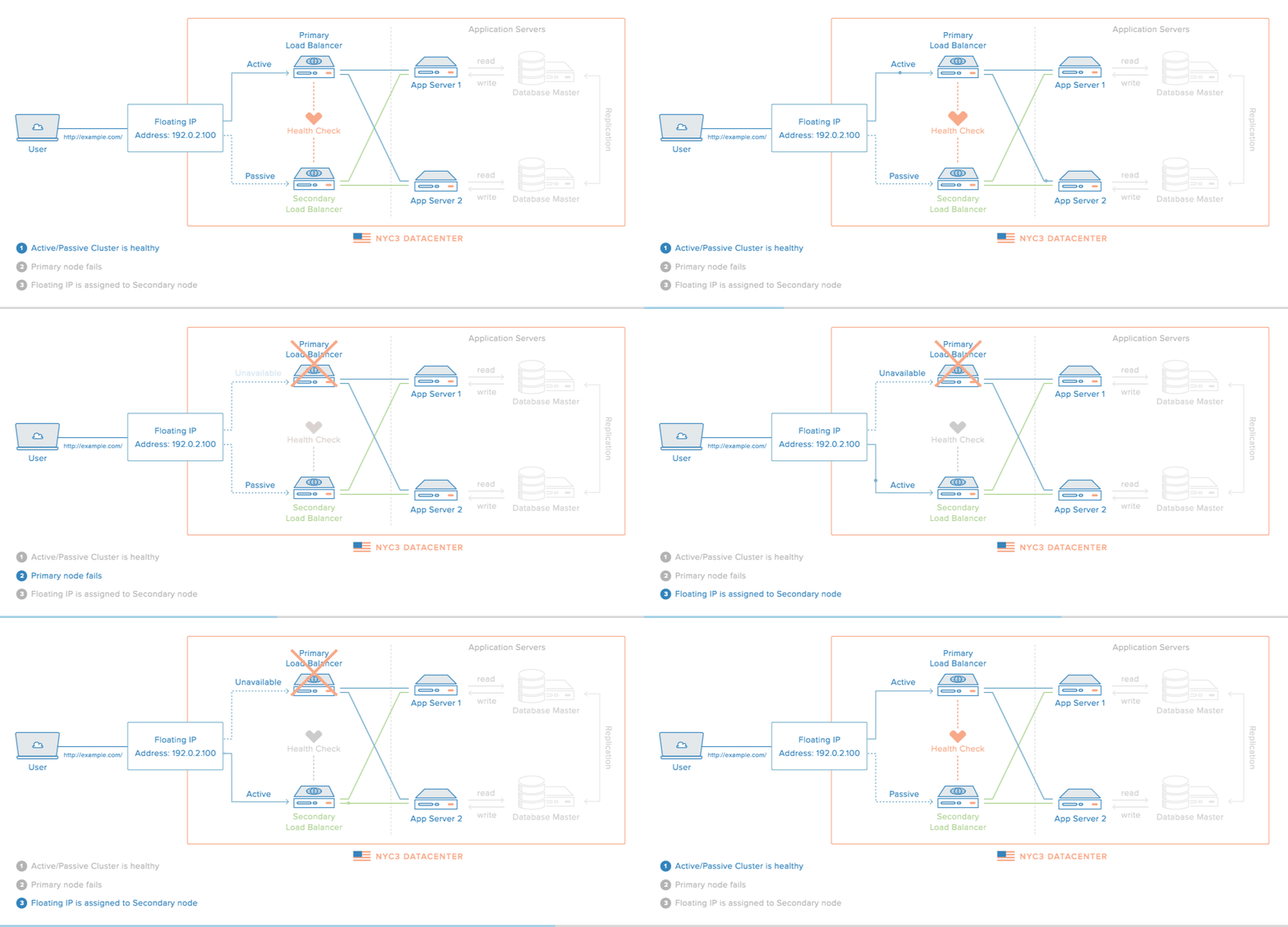
Note: This tutorial only covers
setting up active/passive high availability at the gateway level. That
is, it includes the Floating IP, and the load balancer
servers—Primary and Secondary. Furthermore, for demonstration purposes,
instead of configuring reverse-proxy load balancers on each server, we
will simply configure them to respond with their respective hostname and
public IP address.
To achieve this goal, we will follow these steps:
- Create 2 Droplets that will receive traffic
- Create Floating IP and assign it to one of the Droplets
- Create DNS A record that points to Floating IP (optional)
- Install Heartbeat on Droplets
- Configure Heartbeat to Run Floating IP Reassignment Service
- Create Floating IP Reassignment Service
- Test failover
Prerequisites
In order to automate the Floating IP reassignment, we must use the
DigitalOcean API. This means that you need to generate a Personal Access
Token (PAT), which is an API token that can be used to authenticate to
your DigitalOcean account, with
read and
write access by following the How To Generate a Personal Access Token
section of the API tutorial. Your PAT will be used in a script that
will be added to both servers in your cluster, so be sure to keep it
somewhere safe—as it allows full access to your DigitalOcean account—for
reference.
In addition to the API, this tutorial utilizes the following DigitalOcean features:
- Floating IPs
- Metadata
- User Data (Cloud-Config scripts)
Please read the linked tutorials if you want to learn more about them.
Create Droplets
The first step is to create two Ubuntu Droplets in the same
datacenter, which will act as the primary and secondary servers
described above. In our example setup, we will name them "primary" and
"secondary" for easy reference. We will install Nginx on both Droplets
and replace their index pages with information that uniquely identifies
them. This will allow us a simple way to demonstrate that the HA setup
is working. For a real setup, your servers should run the web server or
load balancer of your choice.
Create two Ubuntu 14.04 Droplets,
primary and
secondary, with this bash script as the user data:
Example User Data
#!/bin/bash

apt-get -y update
apt-get -y install nginx
export HOSTNAME=$(curl -s http://169.254.169.254/metadata/v1/hostname)
export PUBLIC_IPV4=$(curl -s http://169.254.169.254/metadata/v1/interfaces/public/0/ipv4/address)
echo Droplet: $HOSTNAME, IP Address: $PUBLIC_IPV4 > /usr/share/nginx/html/index.html
This will install Nginx and replace the contents of
index.html
with the droplet's hostname and IP address (by referencing the Metadata
service). Accessing either Droplet via its public IP address will show a
basic webpage with the Droplet hostname and IP address, which will be
useful for testing which Droplet the Floating IP is pointing to at any
given moment.
Create a Floating IP
In the DigitalOcean Control Panel, click
Networking, in the top menu, then
Floating IPs in the side menu.
Assign a Floating IP to your
primary Droplet, then click the
Assign Floating IP button.
After the Floating IP has been assigned, check that you can reach the
Droplet that it was assigned to by visiting it in a web browser.
http://your_floating_ip
You should see the index page of your primary Droplet.
If you want to be able to access your HA setup via a domain name, go ahead and create an
A record in your DNS that points your domain to your Floating IP address. If your domain is using DigitalOcean's nameservers, follow step three
of the How To Set Up a Host Name with DigitalOcean tutorial. Once that
propagates, you may access your active server via the domain name.
The example domain name we'll use is
example.com. If you don't have a domain name right now, you should use the Floating IP address instead.
Install Heartbeat
The next step is to install Heartbeat on both servers. The simplest way to install Heartbeat is to use apt-get:
sudo apt-get update
sudo apt-get install heartbeat
Heartbeat is now installed but it needs to be configured before it will do anything.
In order to get our desired cluster up and running, we must set up these Heartbeat configuration files in
/etc/ha.d, identically on both servers:
- ha.cf: Global configuration of the Heartbeat cluster, including its member nodes
- authkeys: Contains a security key that provides nodes a way to authenticate to the cluster
- haresources: Specifies the services that are
managed by the cluster and the node that is the preferred owner of the
services. Note that this file is not used in a setup that uses a CRM
like Pacemaker
We will also need to provide a script that will perform the Floating
IP reassignment in the event that the primary Droplet's availability
changes.
Before configuring
ha.cf, we should look up the names of each node. Heartbeat requires that each node name matches their respective
uname -n output.
On
both servers, run this command to look up the appropriate node names:
Note the output of the command. The example node names are "primary" and "secondary", which matches what we named the Droplets.
We will also need to look up the network interface and IP address
that each node will use to communicate with the rest of the cluster, to
determine which nodes are available. You may use any network interface,
as long as each node can reach the other nodes in the cluster. We'll use
the public interface of our Droplets, which happens to be
eth0.
On
both servers, use this command to look up the IP address of the
eth0 interface (or look it up in the DigitalOcean Control Panel):
ip addr show eth0 output:
2: eth0: <BROADCAST,MULTICAST,UP,LOWER_UP> mtu 1500 qdisc pfifo_fast state UP group default qlen 1000
    link/ether 04:01:76:a5:45:01 brd ff:ff:ff:ff:ff:ff
    inet 104.236.6.11/18 brd 104.236.63.255 scope global eth0
       valid_lft forever preferred_lft forever
    inet 10.17.0.28/16 scope global eth0
       valid_lft forever preferred_lft forever
    inet6 fe80::601:76ff:fea5:4501/64 scope link
       valid_lft forever preferred_lft forever
Note the IP address of the network interface (highlighted in the example). Be sure to get the IP addresses of both servers.
Create ha.cf File
On
both servers, open
/etc/ha.d/ha.cf in your favorite editor. We'll use
vi:
The file should be new and empty. We need to add the network interfaces and names of each node in our cluster.
Copy and paste this configuration into the file, then replace the
respective node names and IP addresses with the values that we looked up
earlier. In this example,
primary's IP address is
104.236.6.11 and
secondary's IP address is
104.236.6.22:
node primary
ucast eth0 104.236.6.11
node secondary
ucast eth0 104.236.6.22
Save and exit. Next, we'll set up the cluster's authorization key.
Create authkeys File
The authorization key is used to allow cluster members to join a cluster. We can simply generate a random key for this purpose.
On the
primary node, run these commands to generate a suitable authorization key in an environment variable named
AUTH_KEY:
if [ -z "${AUTH_KEY}" ]; then
  export AUTH_KEY="$(command dd if='/dev/urandom' bs=512 count=1 2>'/dev/null' \
      | command openssl sha1 \
      | command cut --delimiter=' ' --fields=2)"
fi
Then write the
/etc/ha.d/authkeys file with these commands:
sudo bash -c "{
  echo auth1
  echo 1 sha1 $AUTH_KEY
} > /etc/ha.d/authkeys"
Check the contents of the
authkeys file like this:
- sudo cat /etc/ha.d/authkeys
It should like something like this (with a different authorization key):
/etc/ha.d/authkeys example:
auth1
1 sha1 d1e6557e2fcb30ff8d4d3ae65b50345fa46a2faa
Ensure that the file is only readable by root:
- sudo chmod 600 /etc/ha.d/authkeys
Now copy the
/etc/ha.d/authkeys file from your primary node to your secondary node. You can do this manually, or with
scp.
On the
secondary server, be sure to set the permissions of the
authkeys file:
- sudo chmod 600 /etc/ha.d/authkeys
Both servers should have an identical
/etc/ha.d/authkeys file.
Create haresources File
The
haresources file specifies
preferred hosts paired with services that the cluster manages. The preferred host is the node that
should run the associated service(s) if the node is available. If the preferred host
is not
available, i.e. it is not reachable by the cluster, one of the other
nodes will take over. In other words, the secondary server will take
over if the primary server goes down.
On
both servers, open the
haresources file in your favorite editor. We'll use
vi:
- sudo vi /etc/ha.d/haresources
Now add this line to the file, substituting in your primary node's name:
/etc/ha.d/haresources
Save and exit. This configures the
primary server as the preferred host for the
floatip service, which is currently undefined. Let's set up the
floatip service next.
Create Floating IP Reassignment Service
Our Heartbeat cluster is configured to maintain the
floatip
service, which a node can use to assign the Floating IP to itself, but
we still need to create the service. Before we set up the service
itself, however, let's create a script that will assign the Floating IP,
via the DigitalOcean API, to the node that runs it. Then we will create
the
floatip service which will run the Floating IP reassignment script.
Create assign-ip Script
For our example, we'll download a basic Python script that assigns a
Floating IP to a given Droplet ID, using the DigitalOcean API.
On
both servers, download the
assign-ip Python script:
- sudo curl -L -o /usr/local/bin/assign-ip http://do.co/assign-ip
On
both servers, make it executable:
- sudo chmod +x /usr/local/bin/assign-ip
Use of the
assign-ip script requires the following details:
- Floating IP: The first argument to the script, the Floating IP that is being assigned
- Droplet ID: The second argument to the script, the Droplet ID that the Floating IP should be assigned to
- DigitalOcean PAT (API token): Passed in as the environment variable
DO_TOKEN, your read/write DigitalOcean PAT
Feel free to review the contents of the script before continuing.
Now we're ready to create the
floatip service.
Create floatip Service
To create the
floatip service, all we need to do is create an init script that invokes the
assign-ip script that we created earlier, and responds to
start and
stop
subcommands. This init script will be responsible for looking up the
Droplet ID of the server, via the Droplet Metadata service. Also, it
will require the Floating IP that will be reassigned, and the
DigitalOcean API token (the Personal Access Token mentioned in the
prerequisites section).
On
both servers, add open
/etc/init.d/floatip in an editor:
- sudo vi /etc/init.d/floatip
Then copy and paste in this init script, replacing the highlighted
parts with your DigitalOcean API key and the Floating IP that should be
reassigned:
/etc/init.d/floatip
- #!/bin/bash
-
- param=$1
-
- export DO_TOKEN='b7d03a6947b217efb6f3ec3bd3504582'
- IP='45.55.96.8'
- ID=$(curl -s http://169.254.169.254/metadata/v1/id)
-
- if [ "start" == "$param" ] ; then
- python /usr/local/bin/assign-ip $IP $ID
- exit 0
- elif [ "stop" == "$param" ] ; then
- exit 0;
- elif [ "status" == "$param" ] ; then
- exit 0;
- else
- echo "no such command $param"
- exit 1;
- fi
Save and exit.
Make the script executable:
- sudo chmod u+x /etc/init.d/floatip
When this
floatip service is started, it will simply call the
assign-ip
Python script and assign the specified Floating IP to the Droplet that
executed the script. This is the script that will be called by the
secondary server, to reassign the Floating IP to itself, if the
primary server fails. Likewise, the same script will be used by the
primary server, to reclaim the Floating IP, once it rejoins the cluster.
Start Heartbeat
Now that Heartbeat is configured, and all of the scripts it relies on are set up, we're ready to start the Heartbeat cluster!
On
both servers, run this command to start Heartbeat:
- sudo service heartbeat start
You should see output like this:
Heartbeat output:
Starting High-Availability services: Done.
Our HA setup is now complete! Before moving on, let's test that it works as intended.
Test High Availability
It's important to test that a high availability setup works, so let's do that now.
Currently, the Floating IP is assigned to the
primary
node. Accessing the Floating IP now, via the IP address or by the
domain name that is pointing to it, will simply show the index page of
the
primary server. If you used the example user data script, it will look something like this:
Floating IP is pointing to primary server
Droplet: primary, IP Address: 104.236.6.11
This indicates that the Floating IP is, in fact, assigned to the primary Droplet.
Now, let's open a terminal and use
curl to access the
Floating IP on a 1 second loop. Use this command to do so, but be sure
to replace the URL with your domain or Floating IP address:
- while true; do curl http://example.com; sleep 1; done
Currently, this will output the same Droplet name and IP address of
the primary server. If we cause the primary server to fail, by powering
it off or stopping the Heartbeat service, we will see if the Floating IP
gets reassigned to the secondary server.
Let's power off the
primary server now. Do so via the DigitalOcean Control Panel or by running this command on the primary server:
After a few moments, the primary server should become unavailable. Pay attention to the output of the
curl loop that is running in the terminal. You should notice output that looks like this:
curl loop output:
Droplet: primary, IP Address: 104.236.6.11
...
curl: (7) Failed to connect to example.com port 80: Connection refused
Droplet: secondary, IP Address: 104.236.6.22
Droplet: secondary, IP Address: 104.236.6.22
...
That is, the Floating IP address should be reassigned to point to the IP address of the
secondary server. That means that your HA setup is working, as a successful automatic failover has occurred.
You may or may not see the
Connection refused error,
which can occur if you try and access the Floating IP between the
primary server failure and the Floating IP reassignment completion.
Now, you may power on your
primary Droplet, via the DigitalOcean Control Panel. Because Heartbeat is configured with the primary Droplet as the
preferred host
to run the Floating IP reassignment script, the Floating IP will
automatically point back to the primary server as soon as it becomes
available again.
Conclusion
Congratulations! You now have a basic HA server setup using Heartbeat and a DigitalOcean Floating IP.
If you are looking to create a more robust HA setup, look into using Corosync and Pacemaker or Keepalived.
If you want to extend your Heartbeat setup, the next step is to
replace the example Nginx setup with a reverse-proxy load balancer. You
can use Nginx or HAProxy for this purpose. Keep in mind that you will
want to bind your load balancer to the
anchor IP address,
so that your users can only access your servers via the Floating IP
address (and not via the public IP address of each server).

